


Medicare Part A and Part B: Full Onboarding
This guide walks through applying online for Medicare Part A and Part B through the Social Security Administration (SSA). It is an educational walkthrough to help you prepare for your Exact Benefits consultation; SSA makes eligibility and enrollment decisions.
Before you begin
- If you are working past 65 or have employer group health coverage, confirm your Part B timing with your employer benefits team or SSA before submitting.
- Keep your Social Security number, place of birth, current mailing address, and phone number ready.
- Do not send Social Security or Medicare numbers by email.
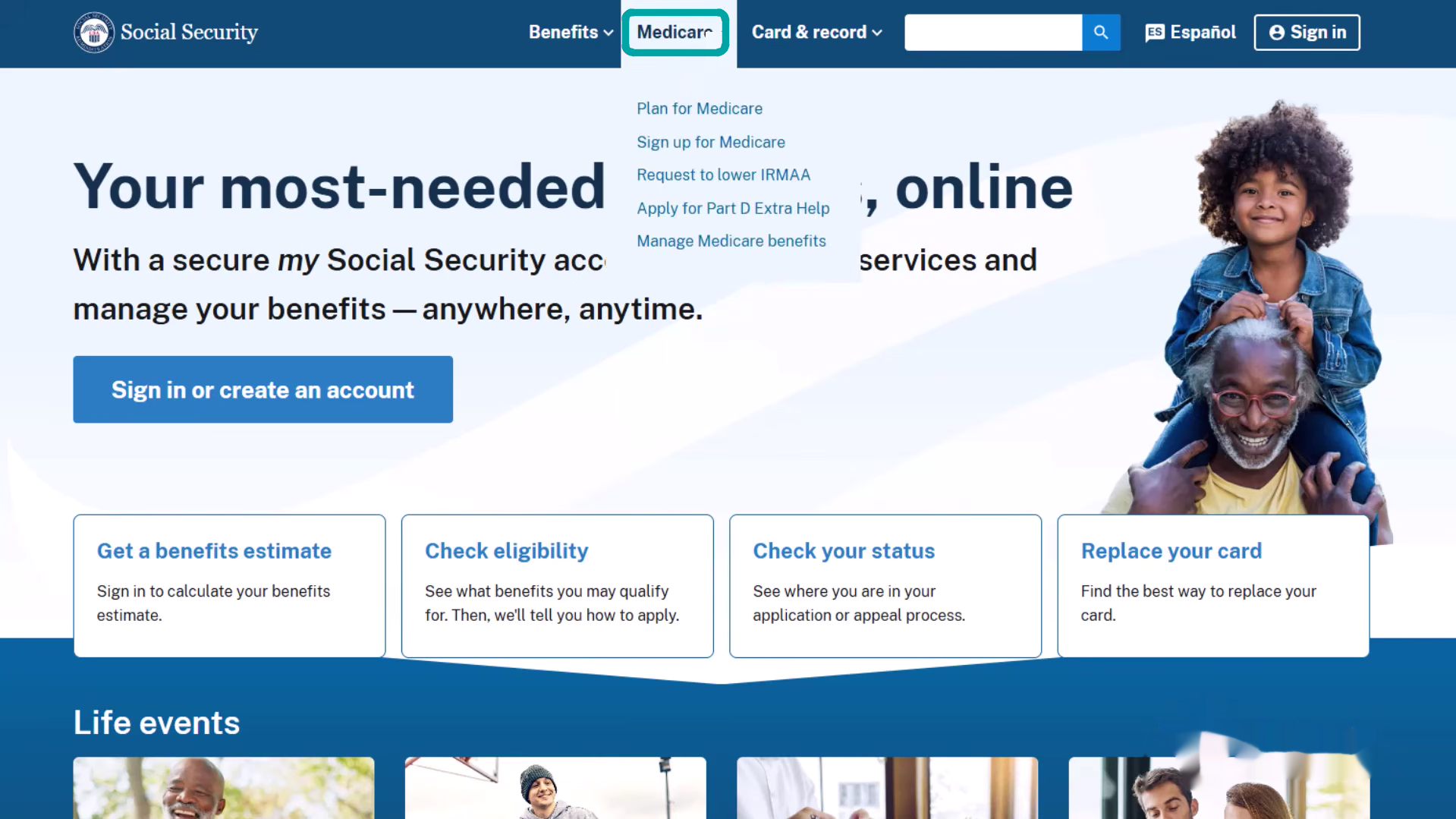
Step 1: Open SSA.gov and choose Medicare
From the SSA homepage, open the Medicare menu.
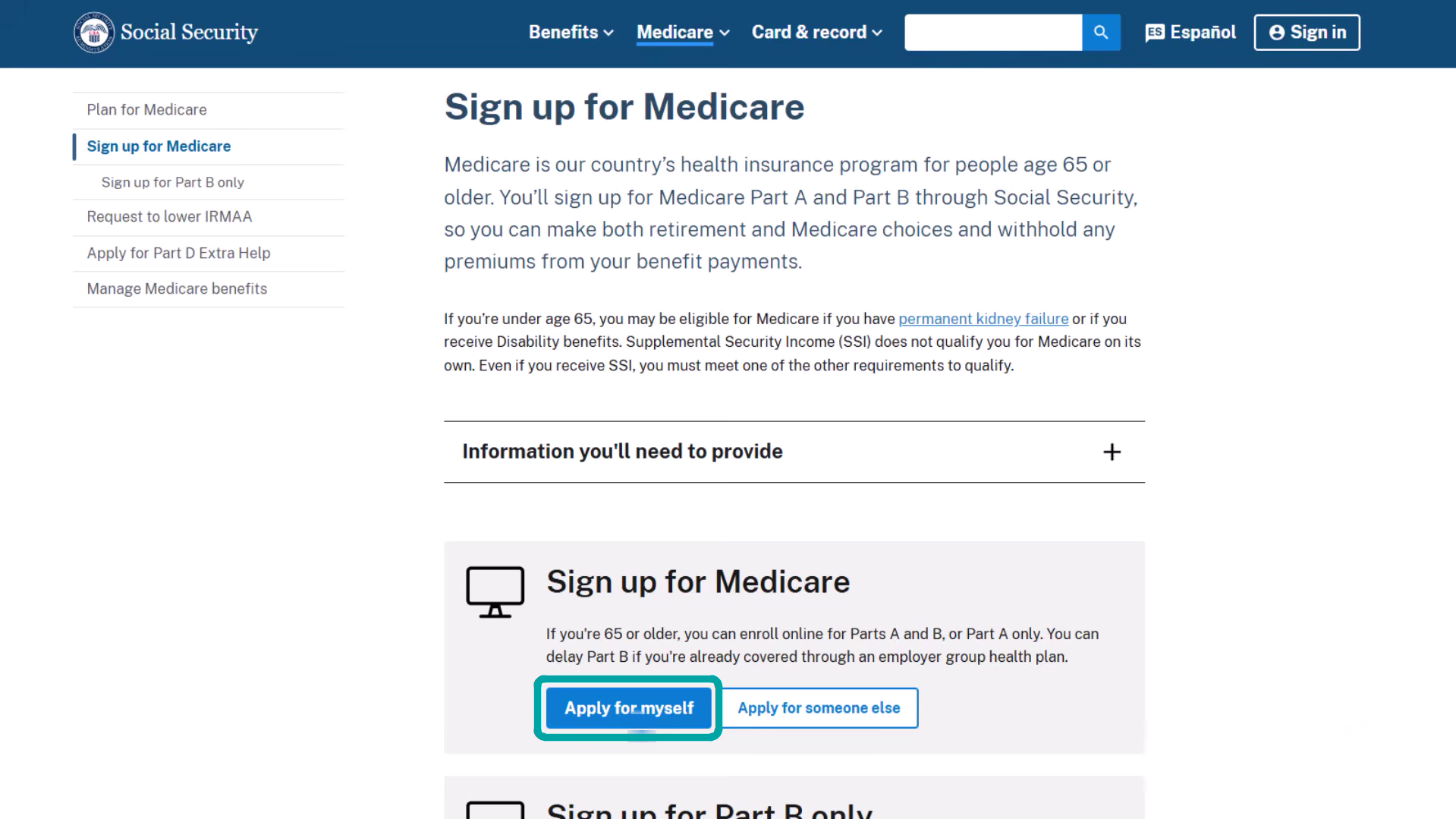
Step 2: Choose Sign up for Medicare
Select the enrollment option and choose Apply for myself.
Step 3: Choose how to sign in
Use a secure sign-in option already associated with your account.
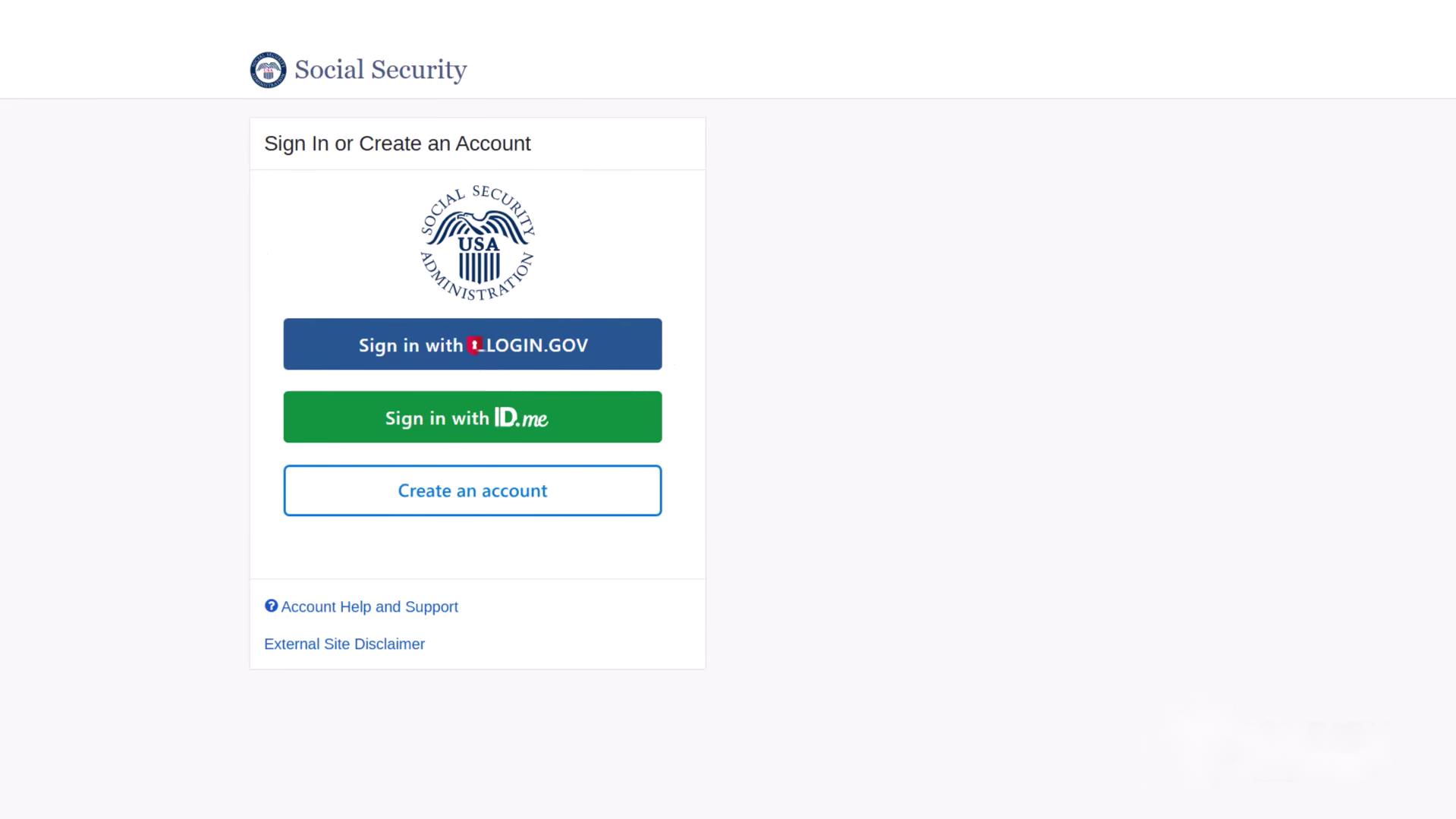
Step 4: Sign in with Login.gov or create an account
Enter your credentials only on the official sign-in page.
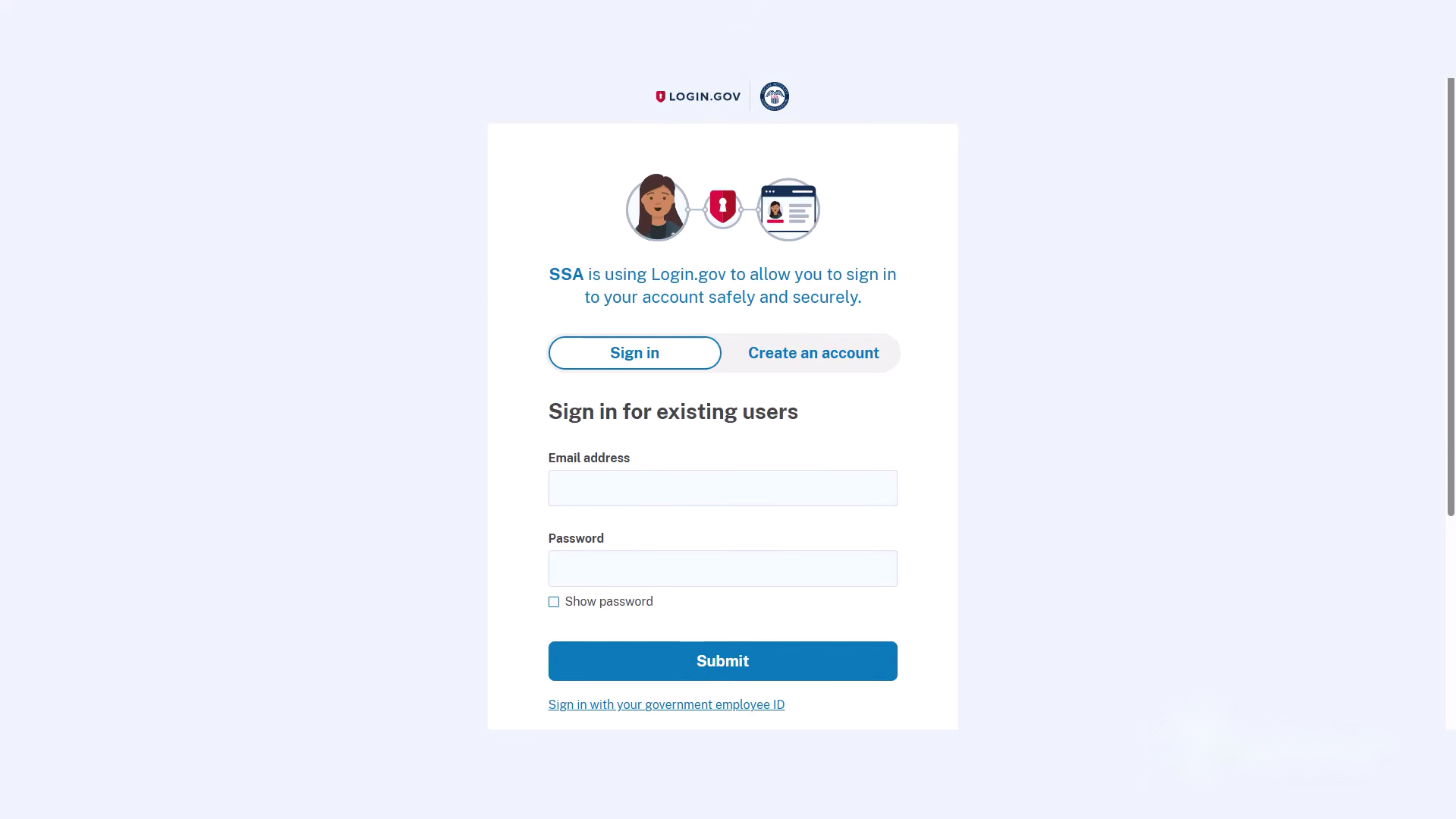
Step 5: Continue through the secure sign-in flow
Read and accept the required terms, then continue.
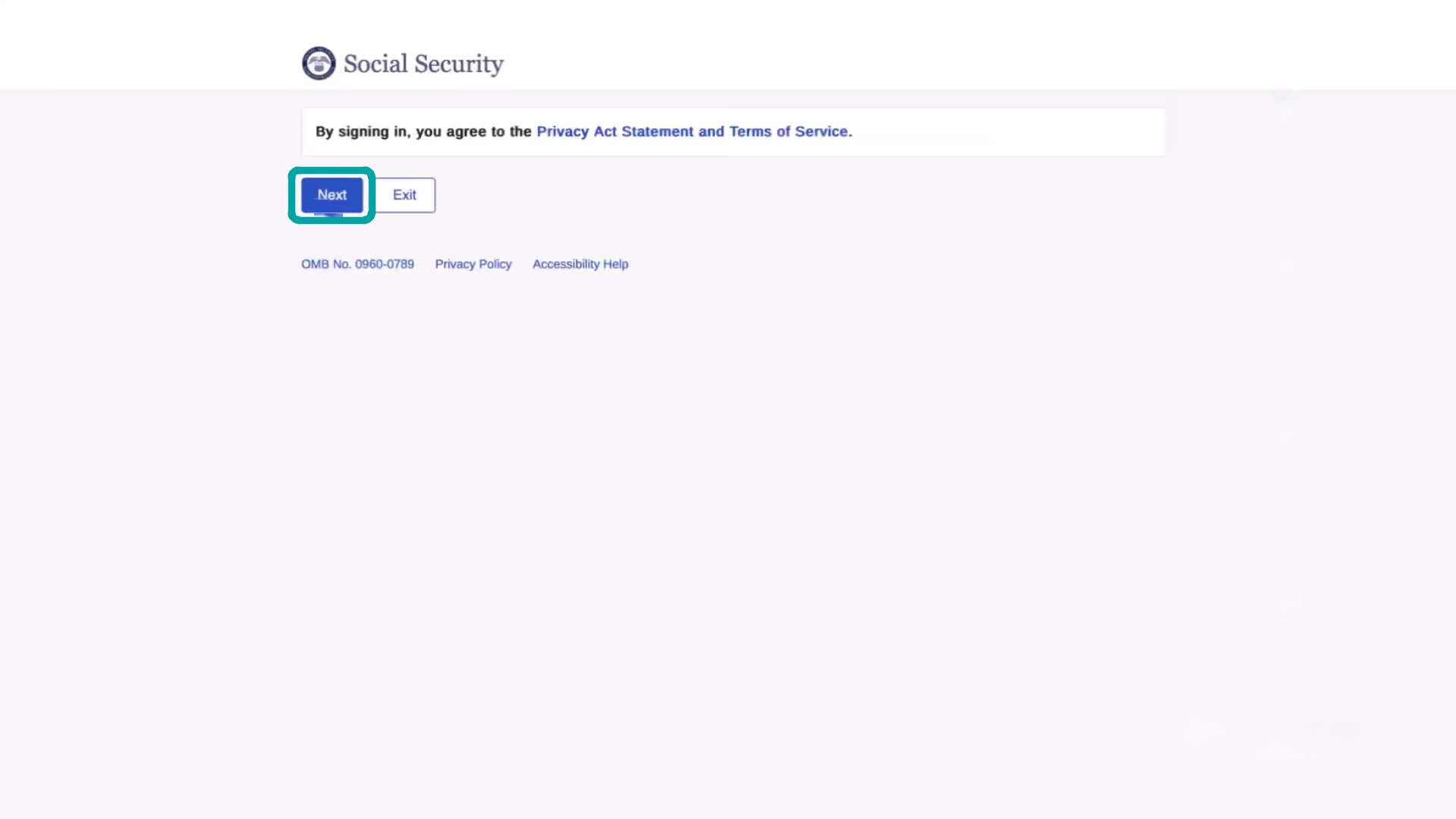
Step 6: Review the application information
Review the eligibility and application information before starting.
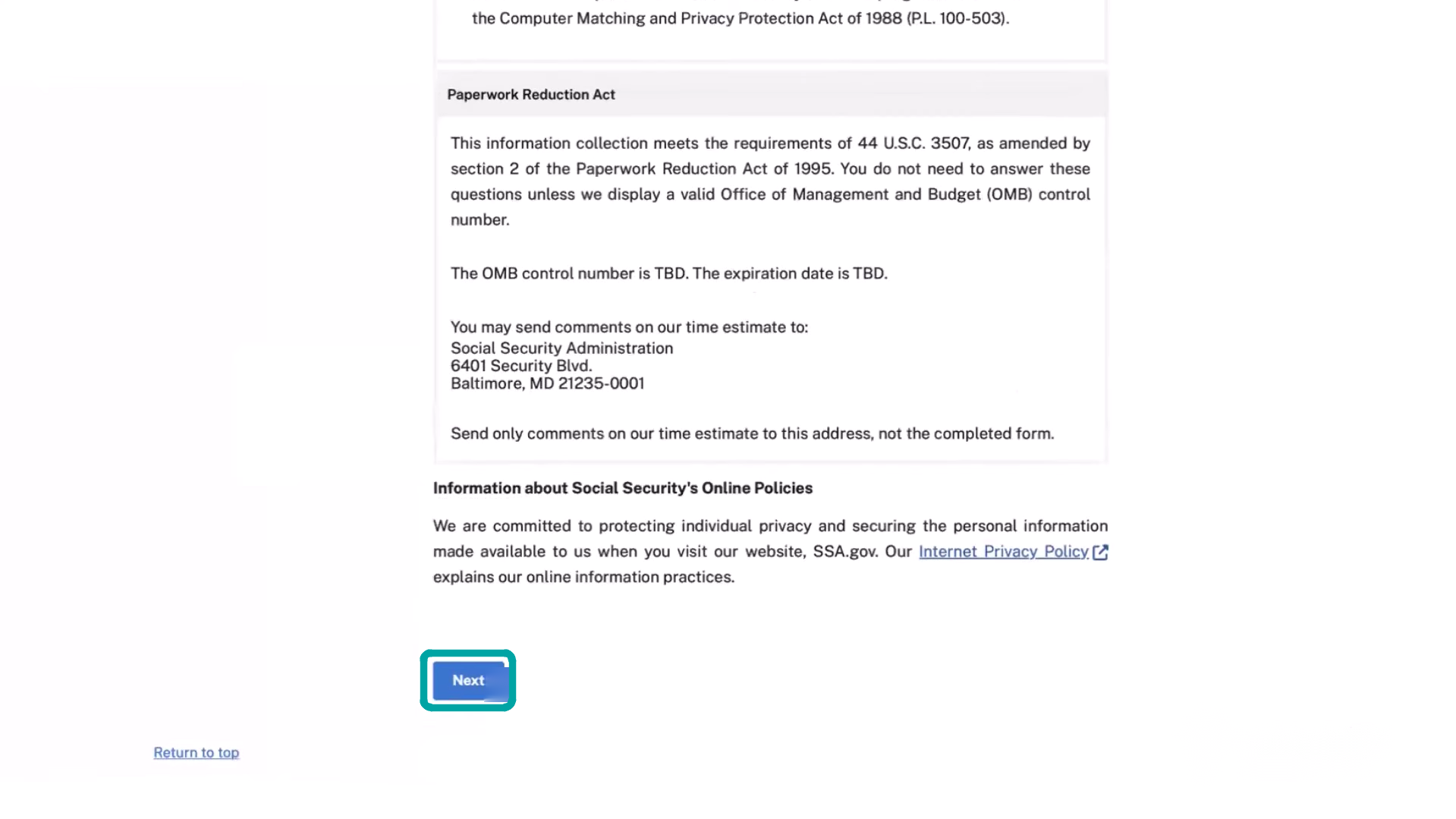
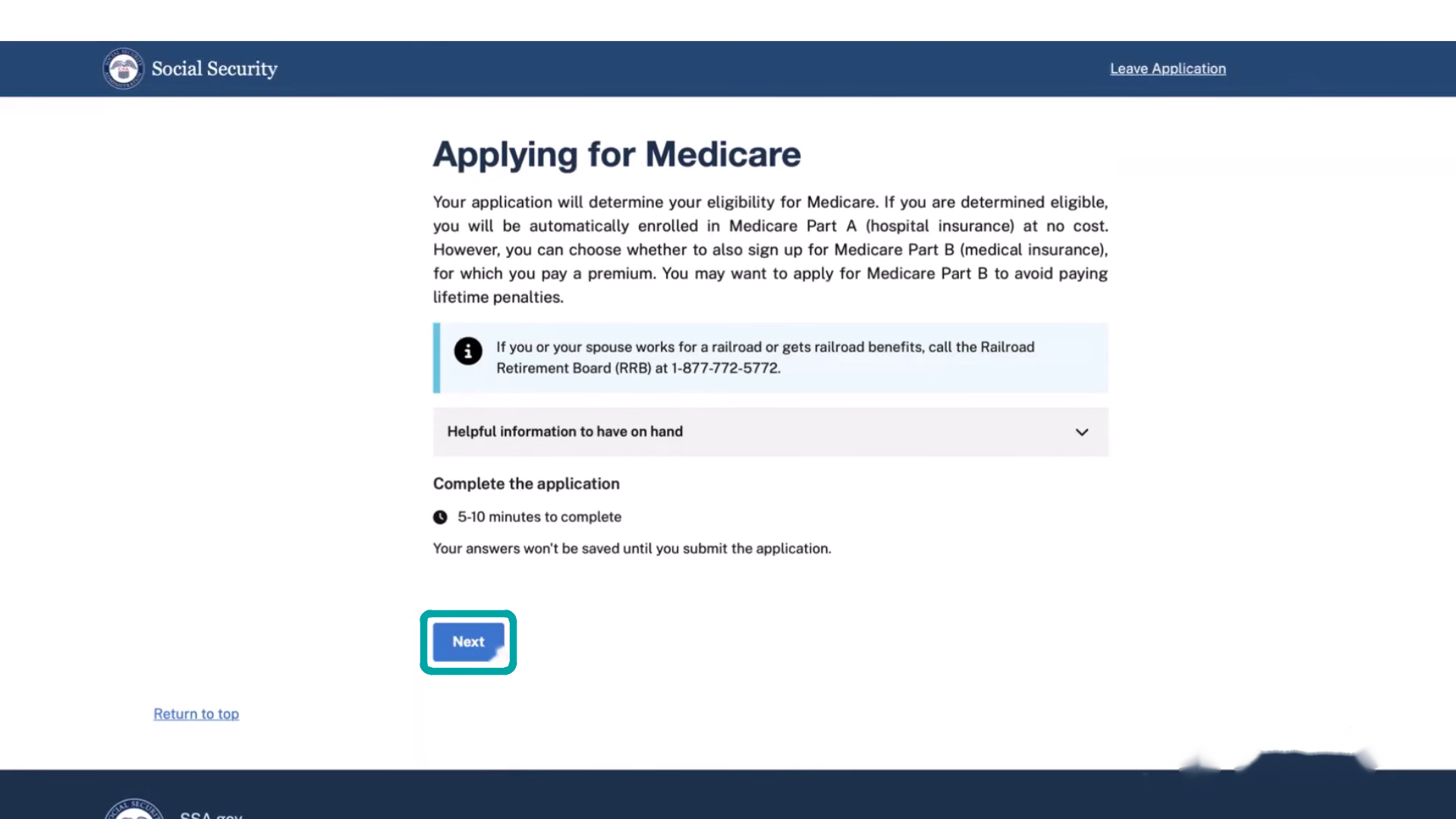
Step 7: Begin the Medicare application
The application explains Part A and the Part B decision.
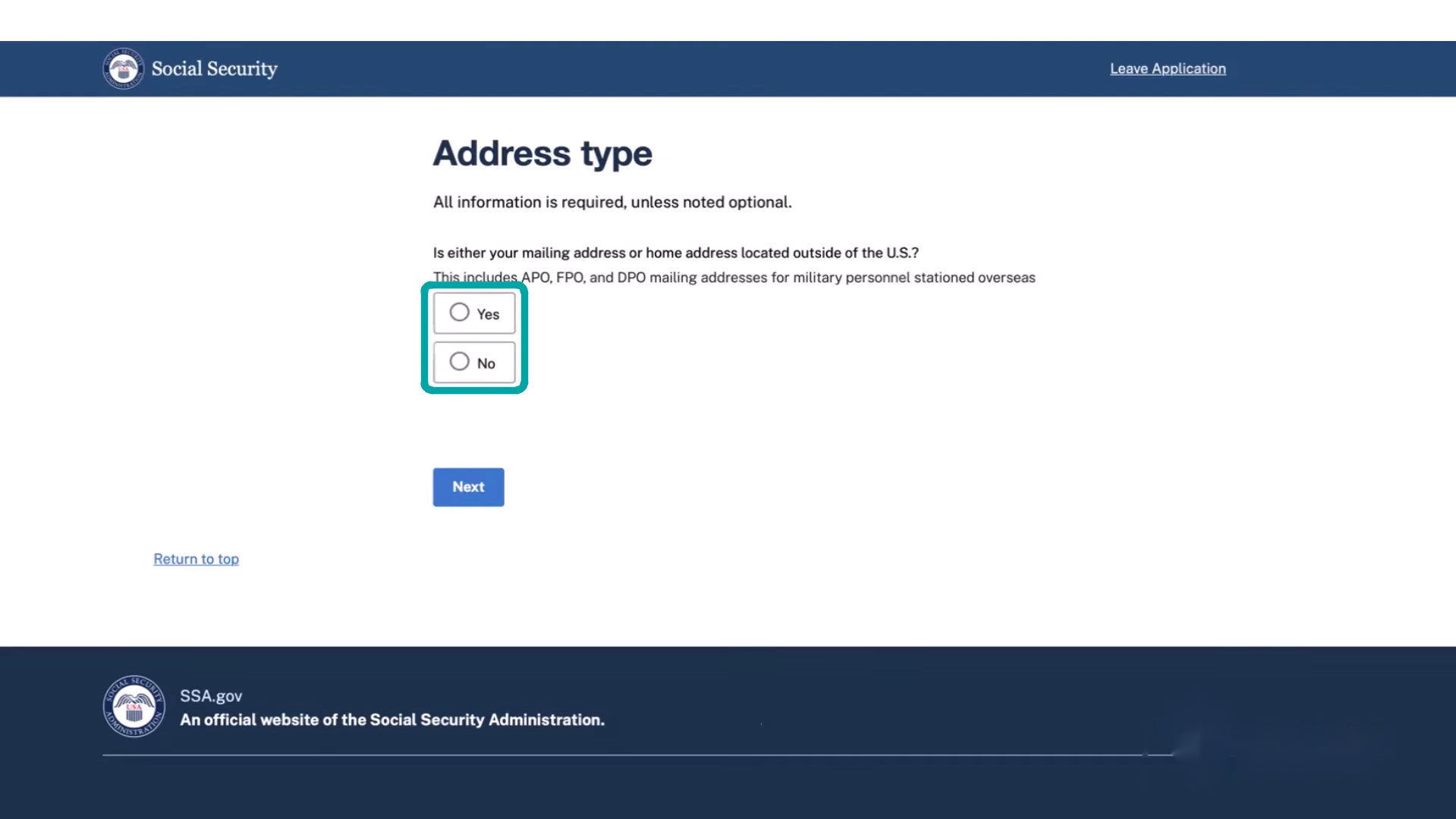
Step 8: Confirm your address type
Answer whether your mailing or home address is outside the U.S.
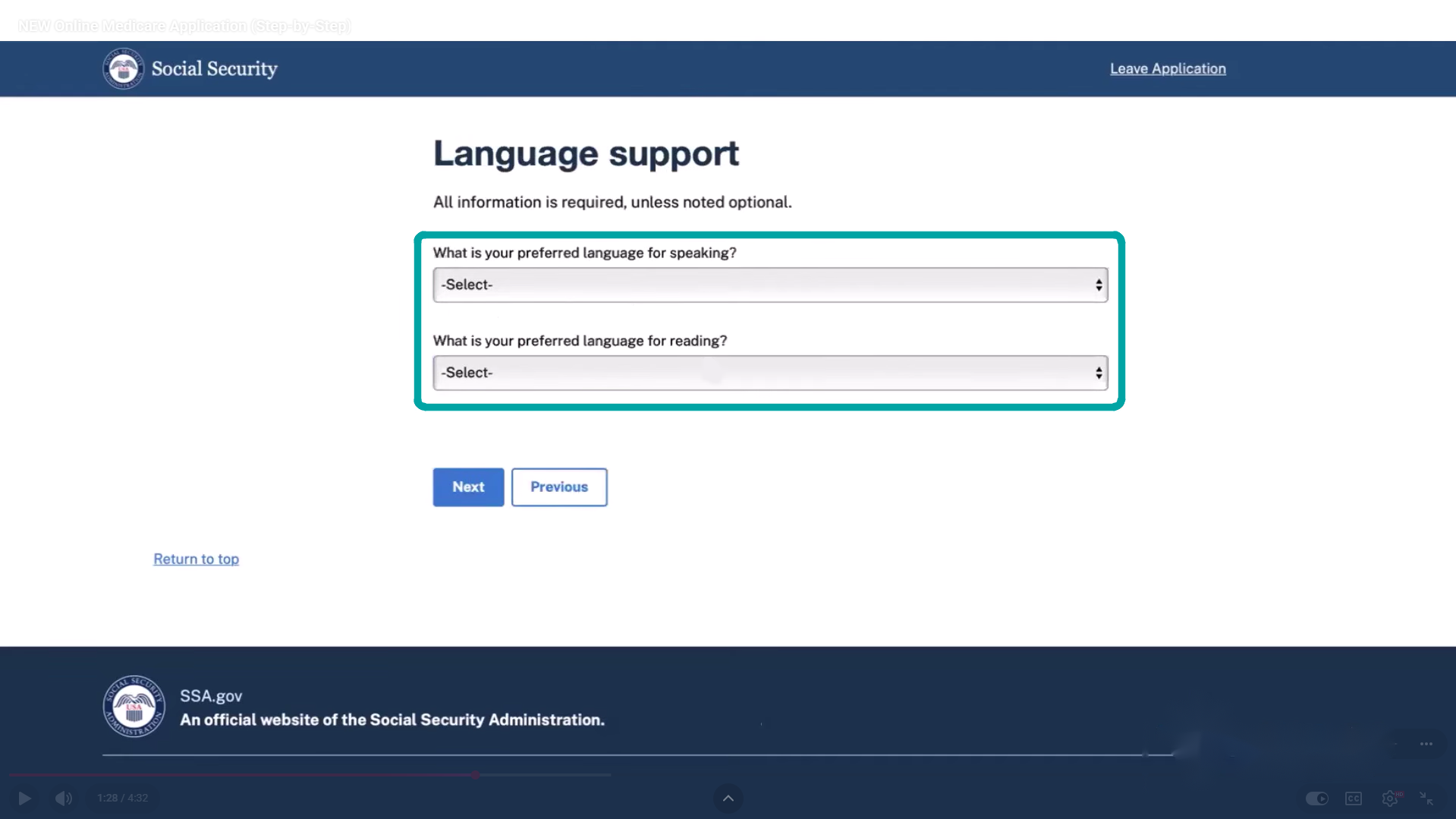
Step 9: Select language support preferences
Choose the preferred language for speaking and reading.
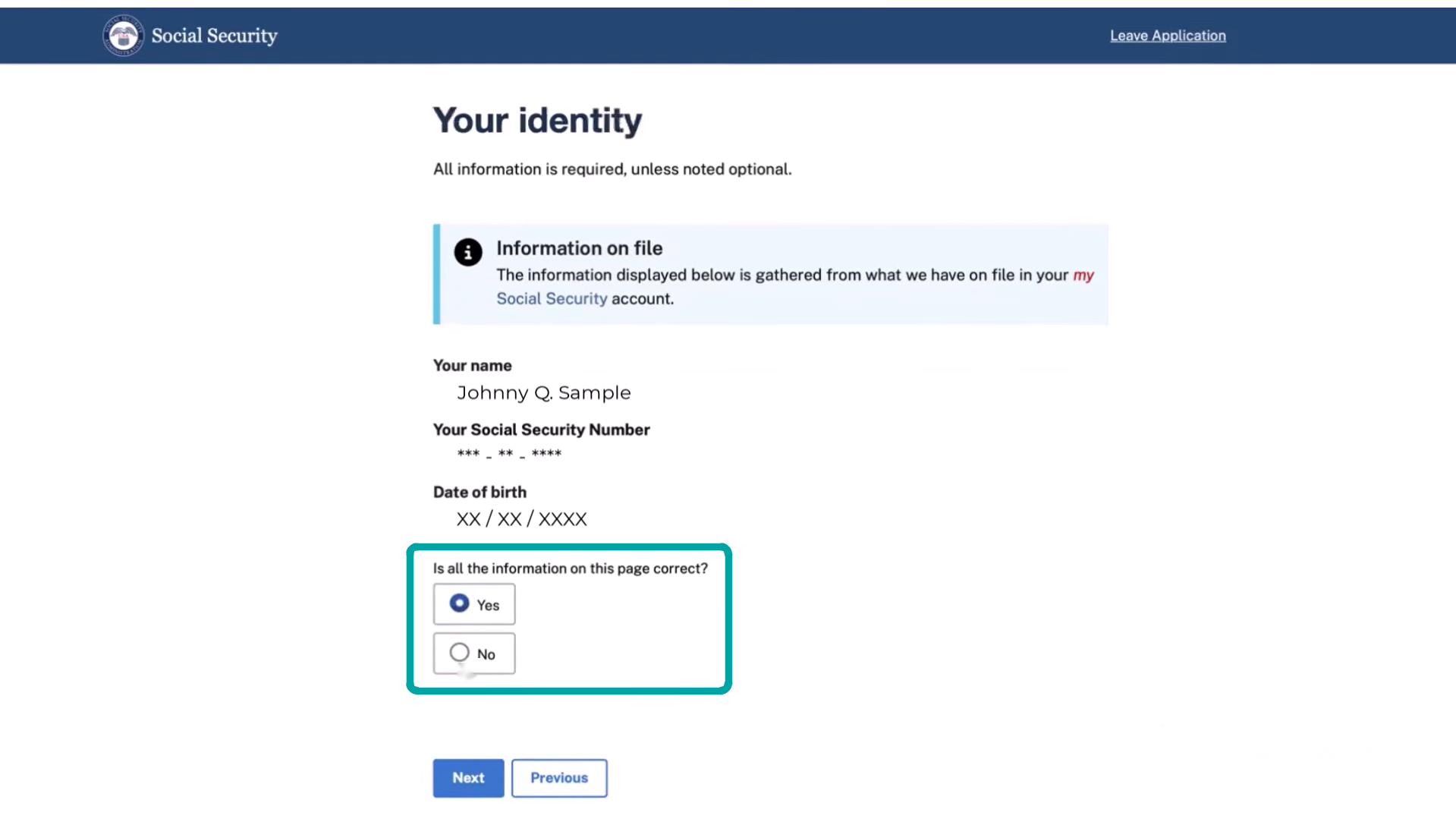
Step 10: Confirm your identity details
Confirm the information SSA has on file.
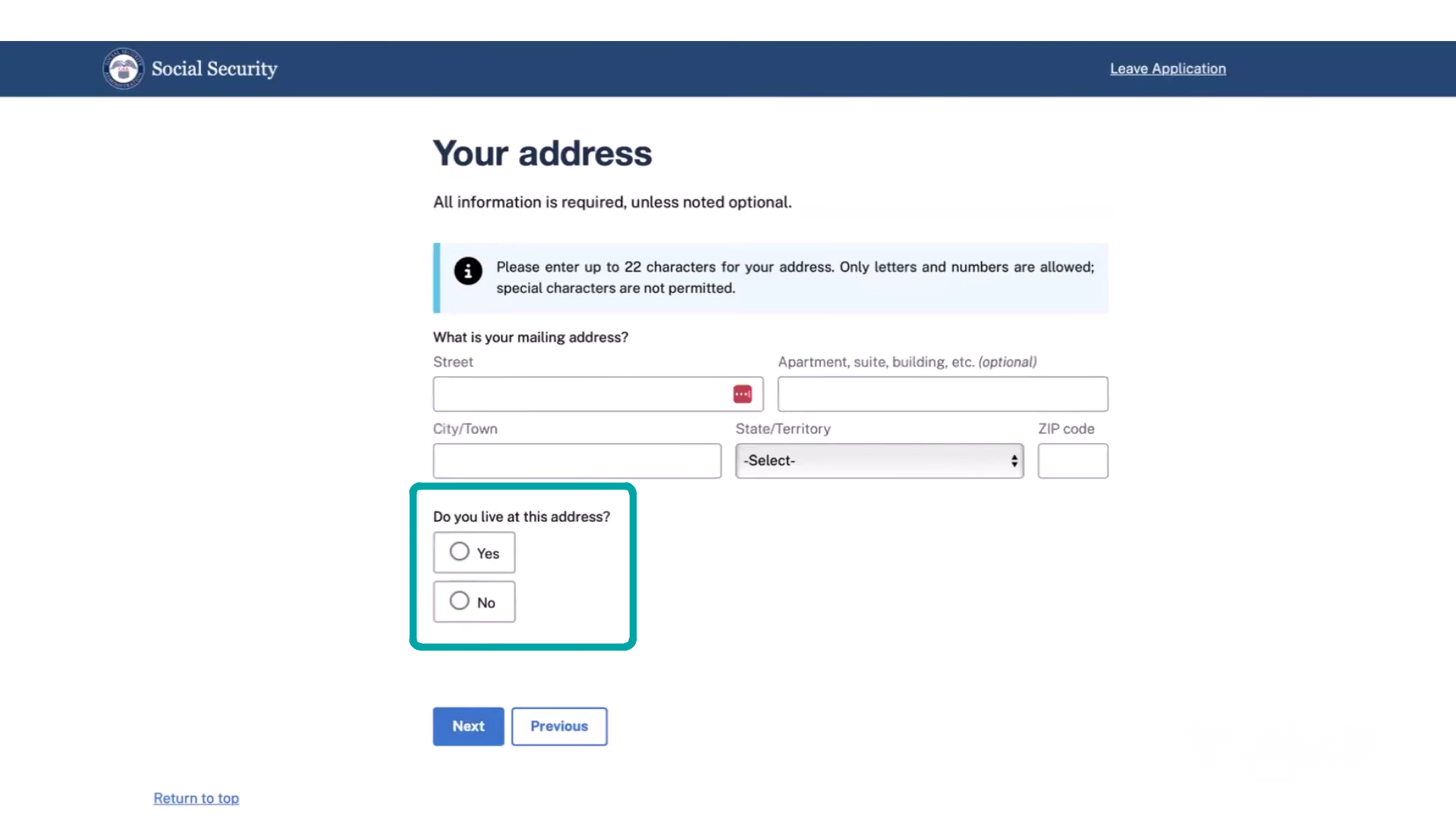
Step 11: Enter your mailing address
Enter your current mailing address and indicate whether you live there.
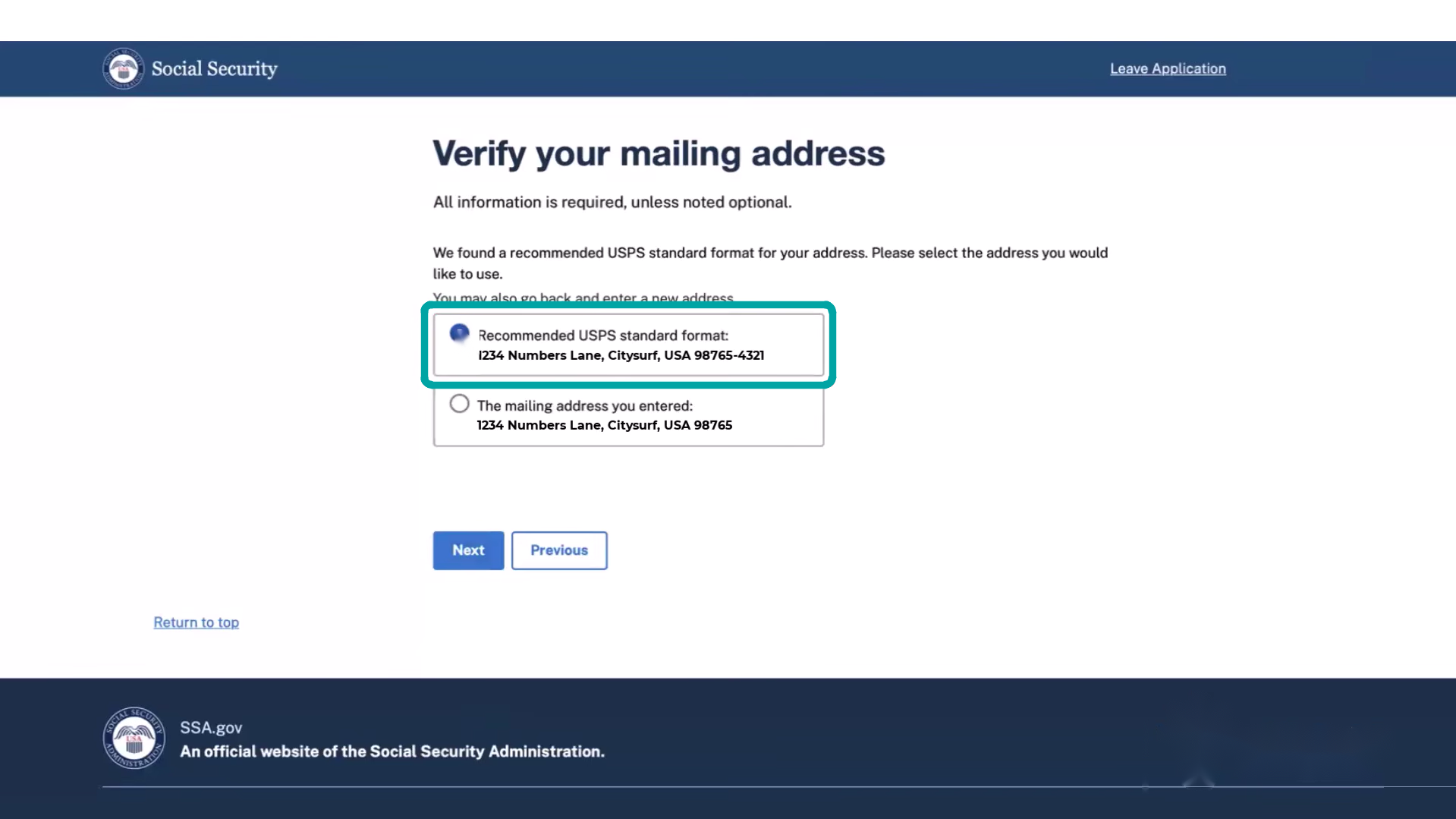
Step 12: Verify the mailing address
Choose the USPS-standard address if it is correct.
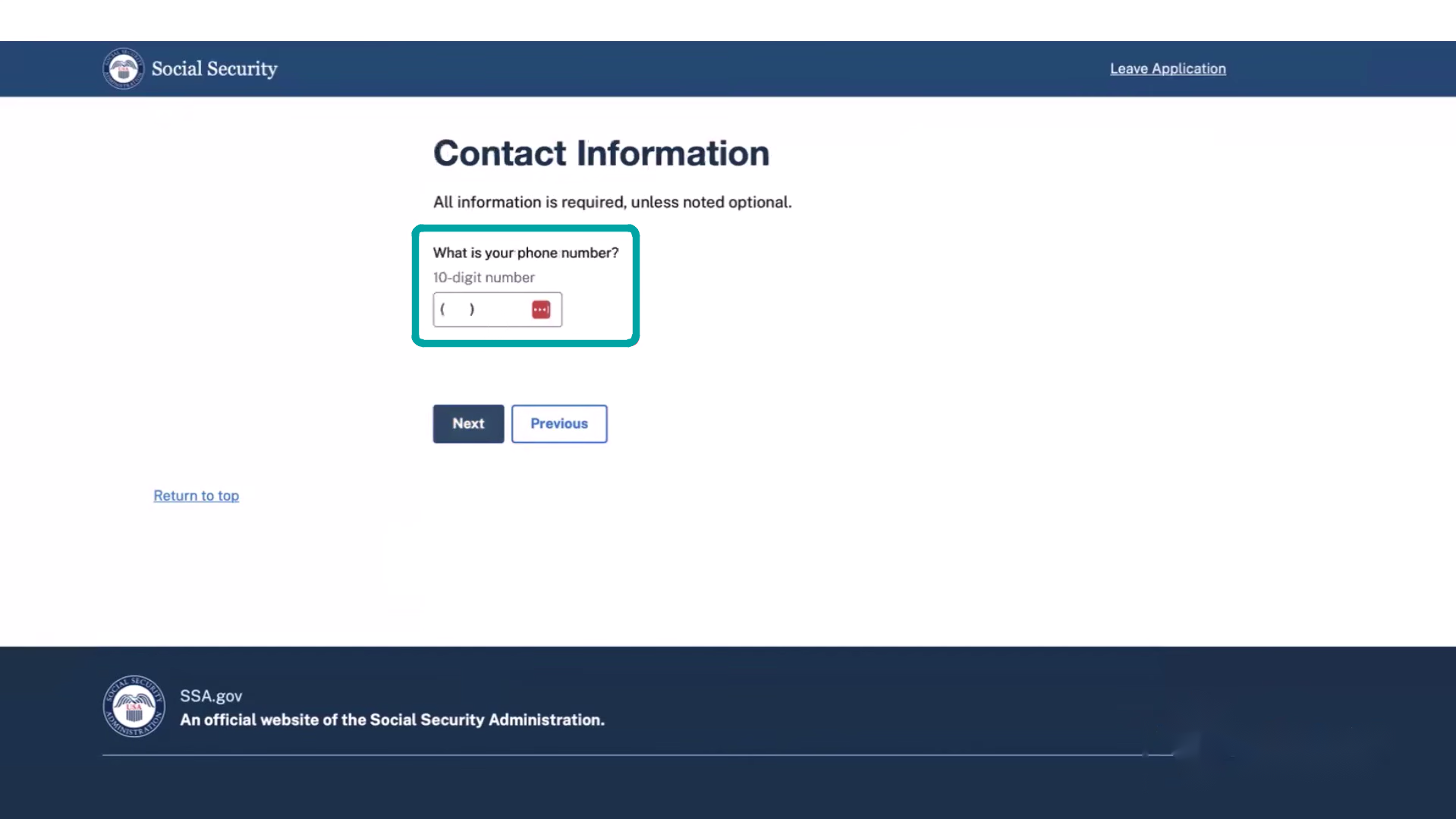
Step 13: Provide your contact information
Enter a phone number SSA can use to contact you.
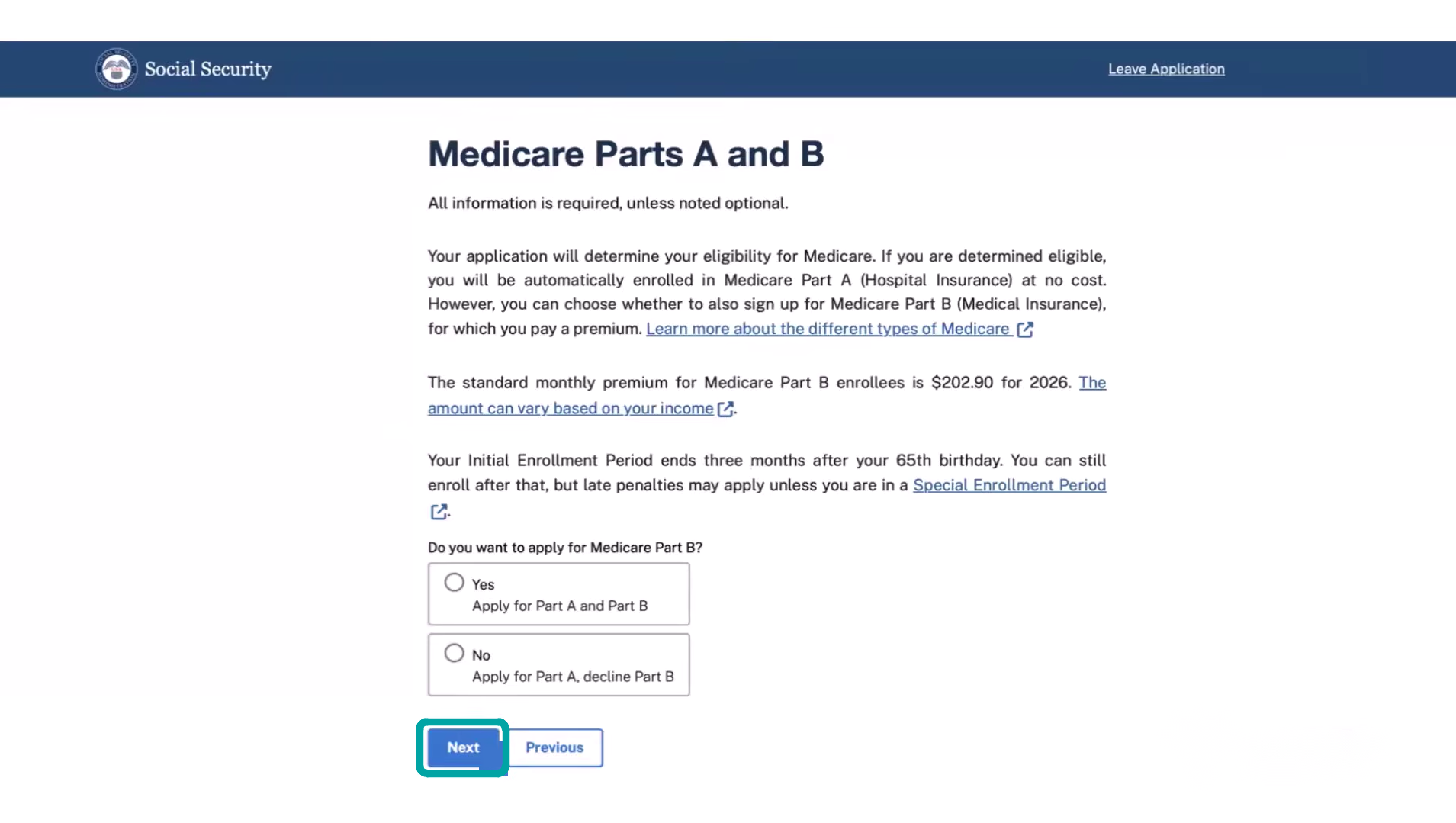
Step 14: Choose Medicare Part A and Part B
Select whether you are applying for Part B as well as Part A.
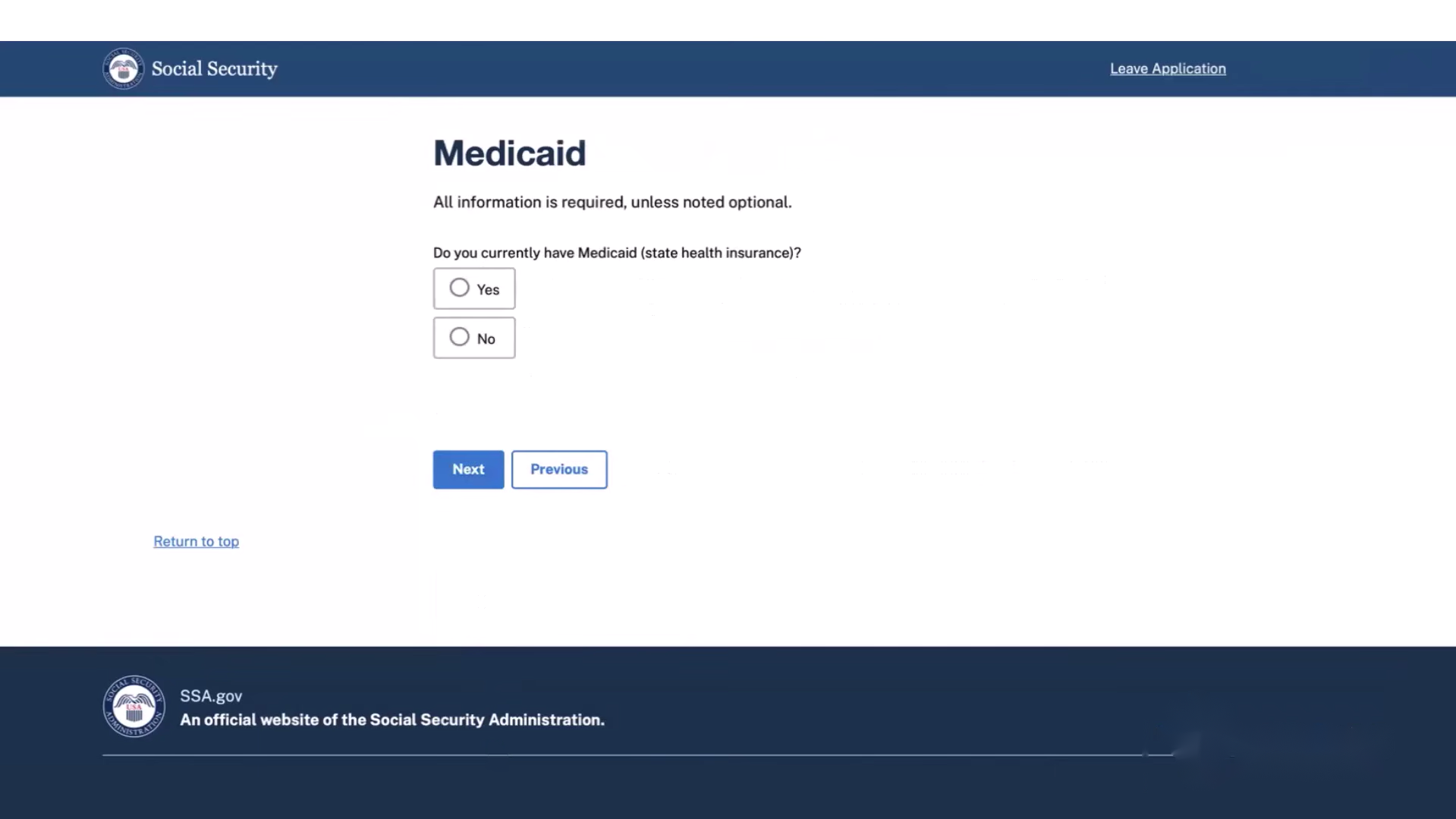
Step 15: Answer the Medicaid question
Answer the Medicaid question accurately.
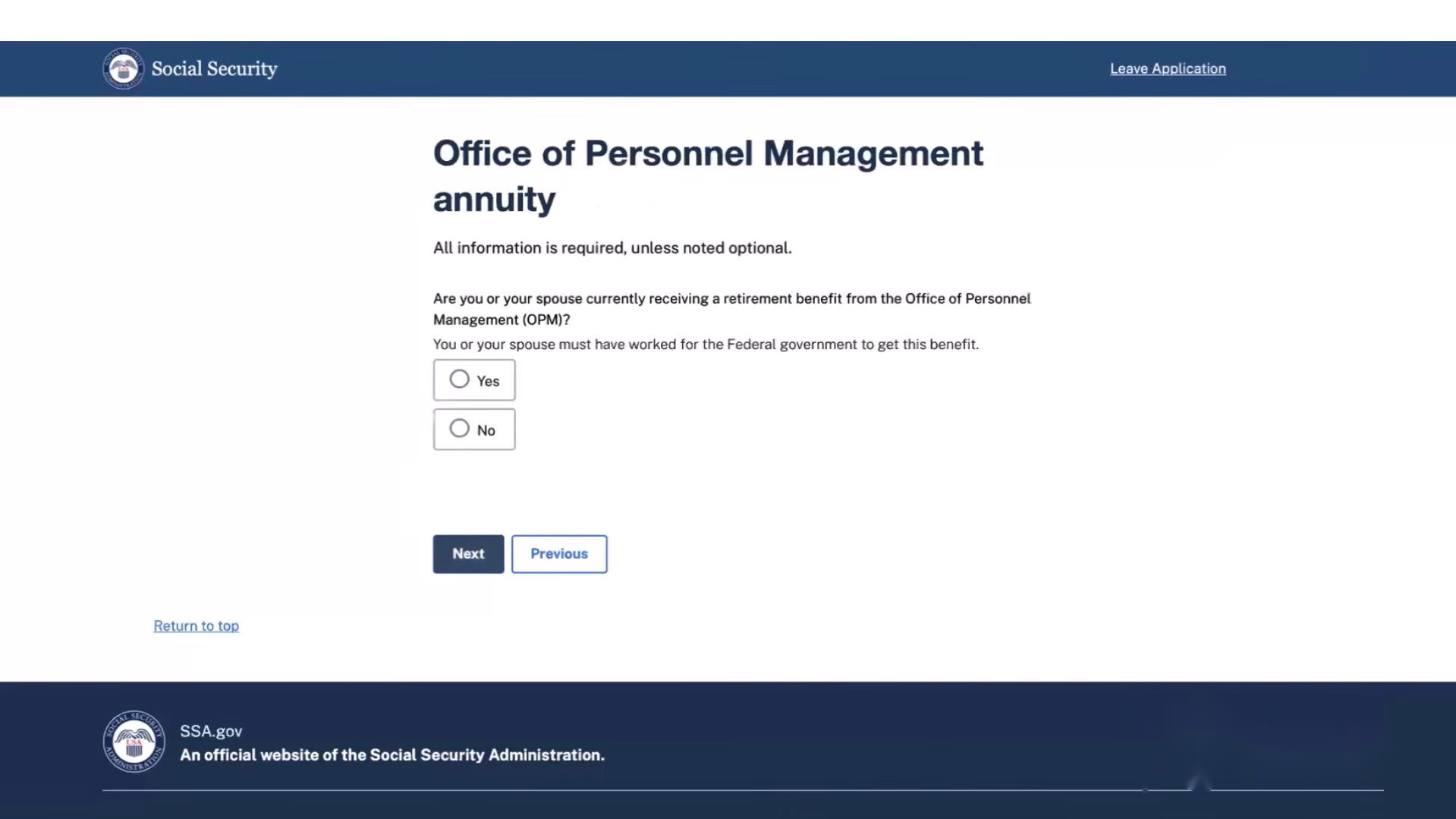
Step 16: Answer the OPM annuity question
Answer the retirement-benefit question accurately.
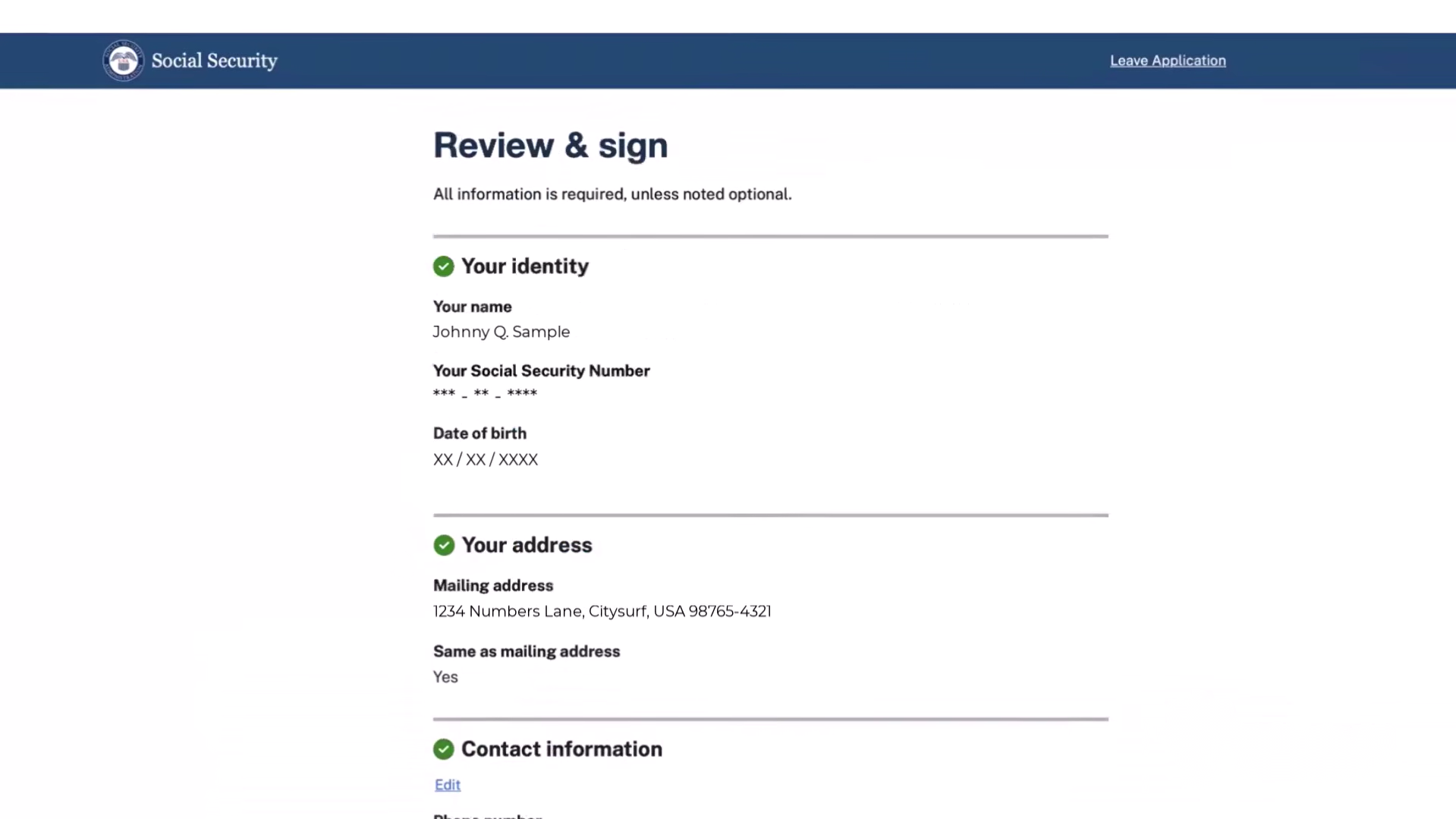
Step 17: Review your application
Check every section and edit anything that is not correct.
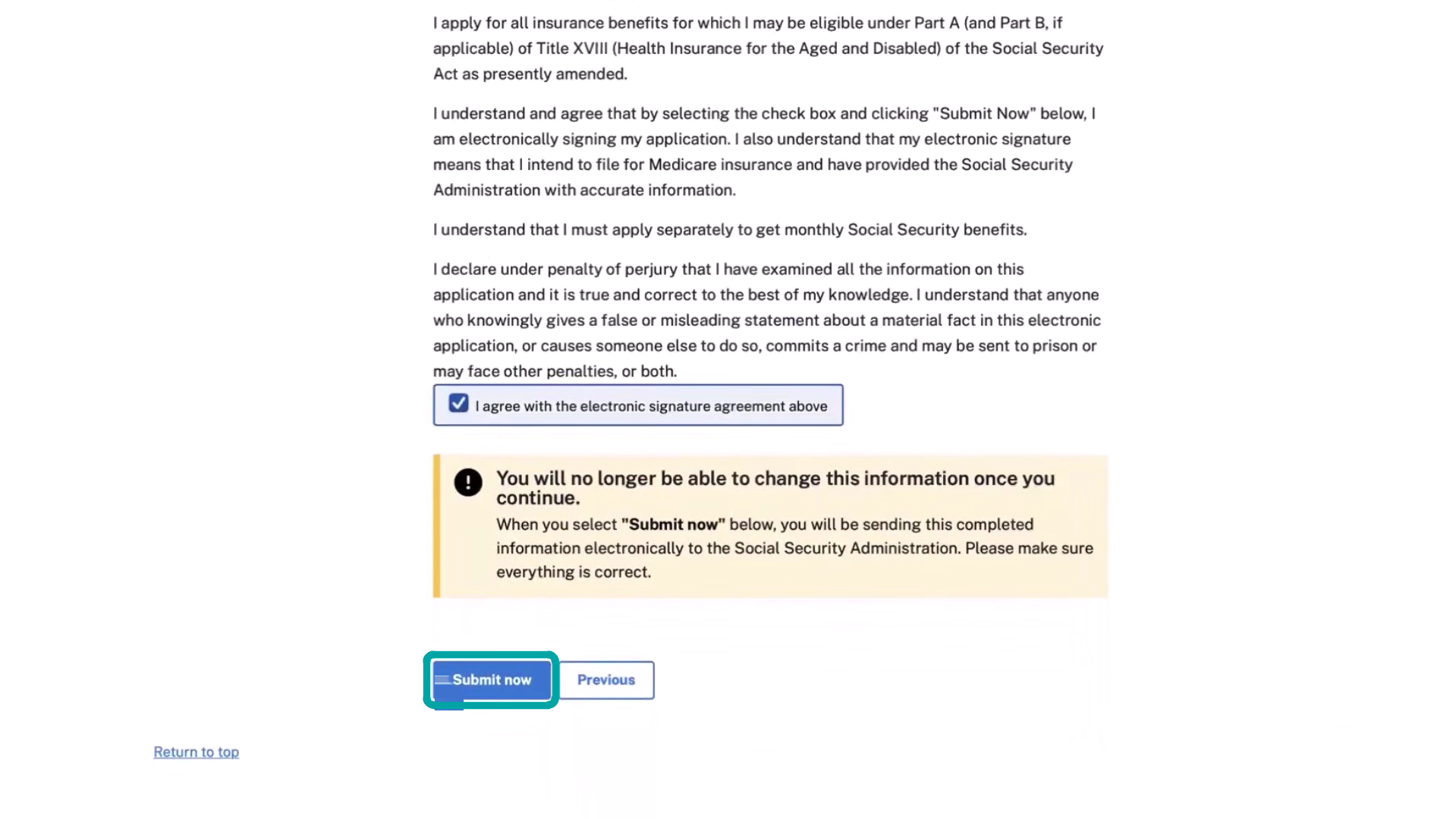
Step 18: Accept the electronic-signature agreement and submit
Agree to the electronic signature only after the application is complete, then select Submit now.
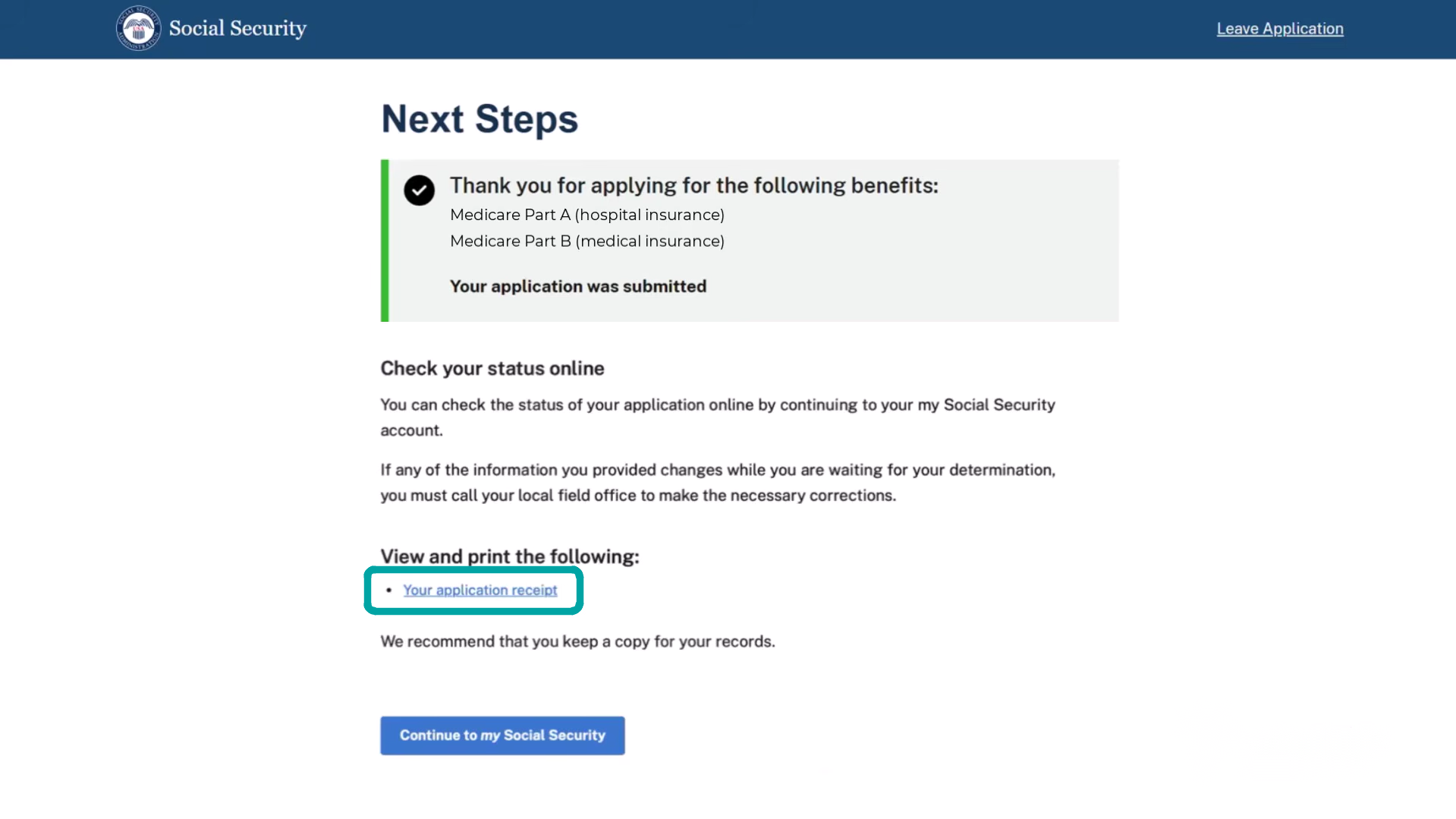
Step 19: Confirm your application was submitted
Confirm that Part A and Part B are listed and the application was submitted.
Step 20: Save your application receipt
Open and keep a copy of the application receipt for your records.
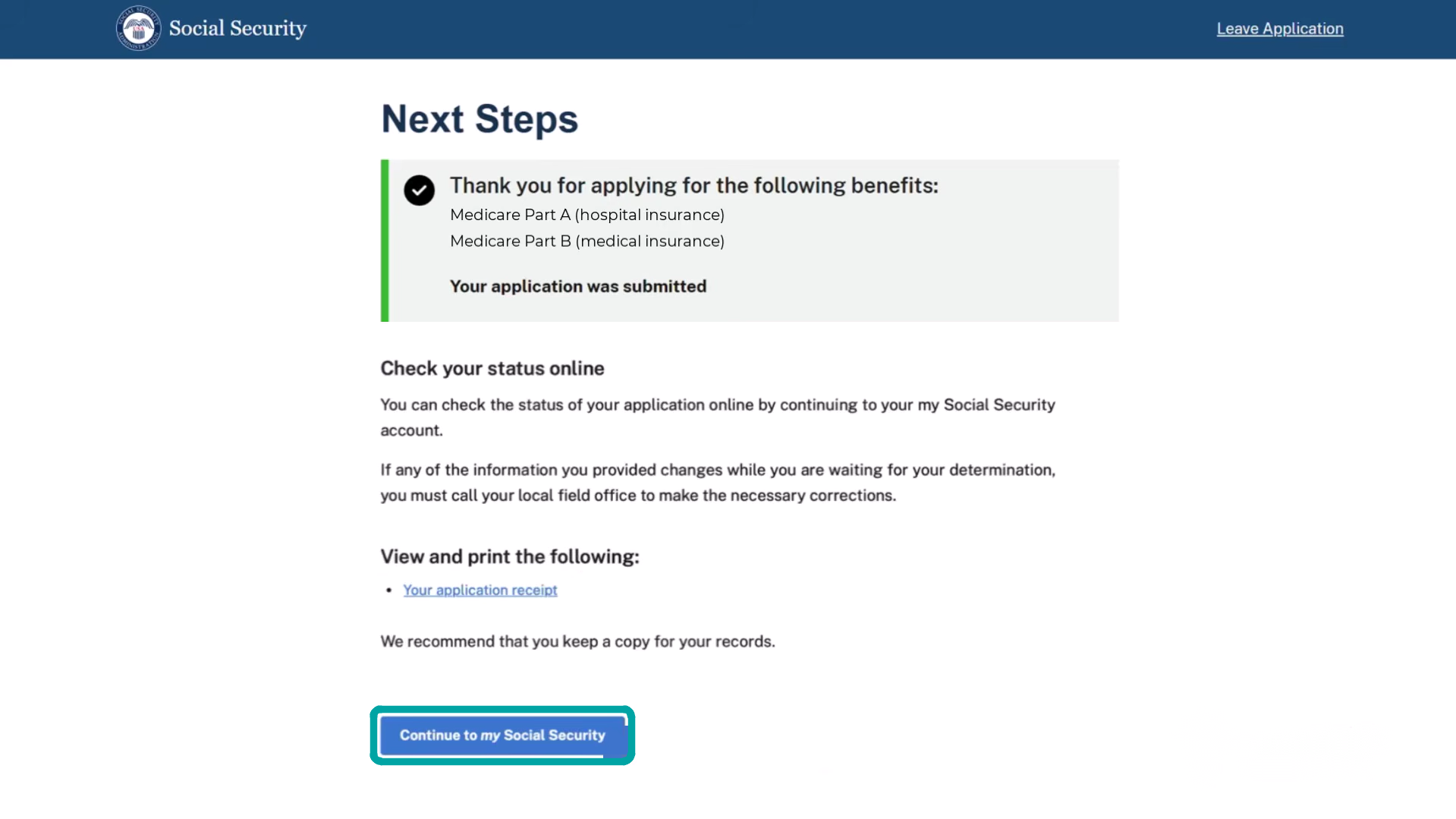
Step 21: Return to your my Social Security account
Return to your account to follow the application.
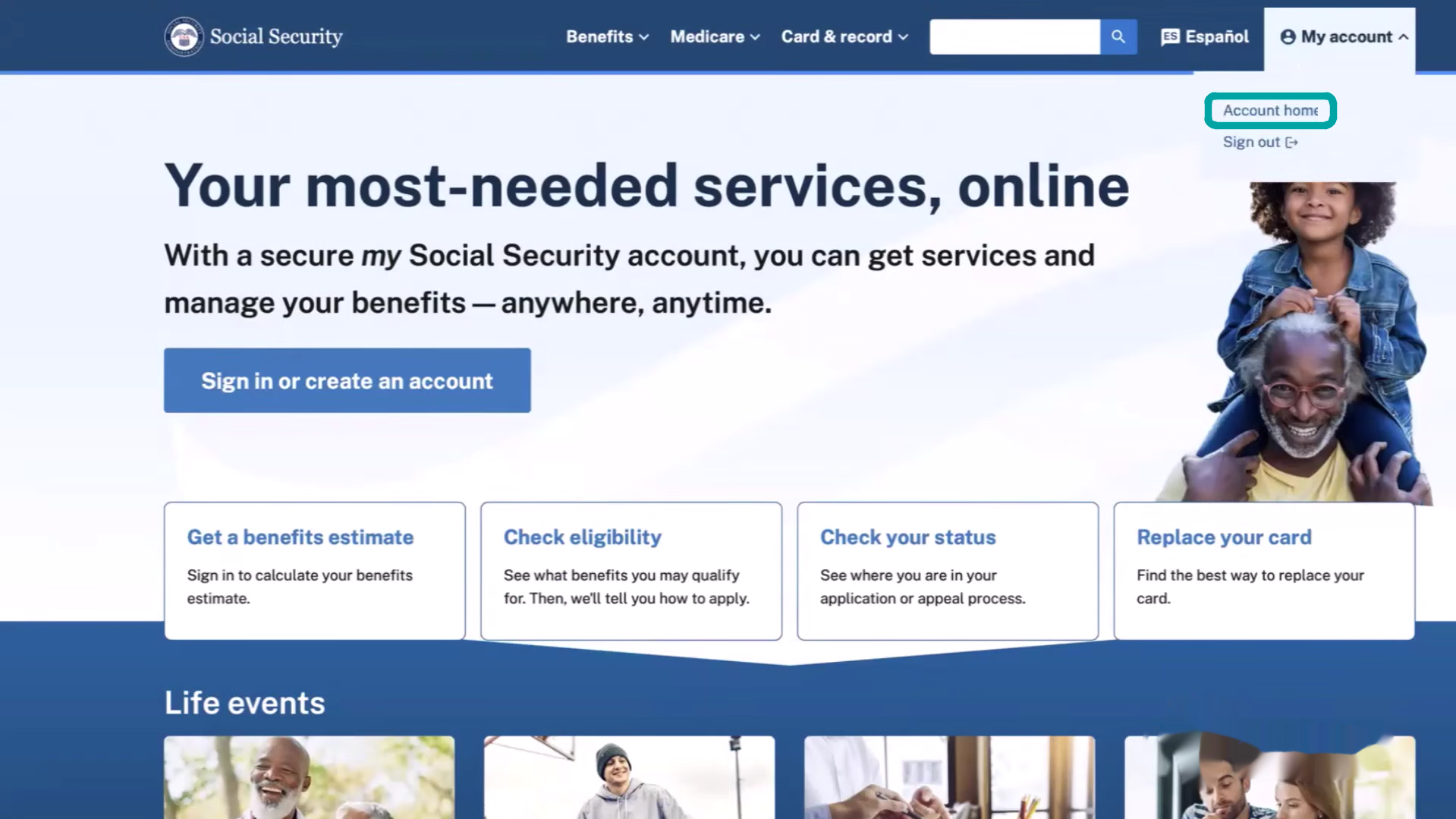
Step 22: Monitor the application review status
Check the current review stage in Your Benefit Applications.
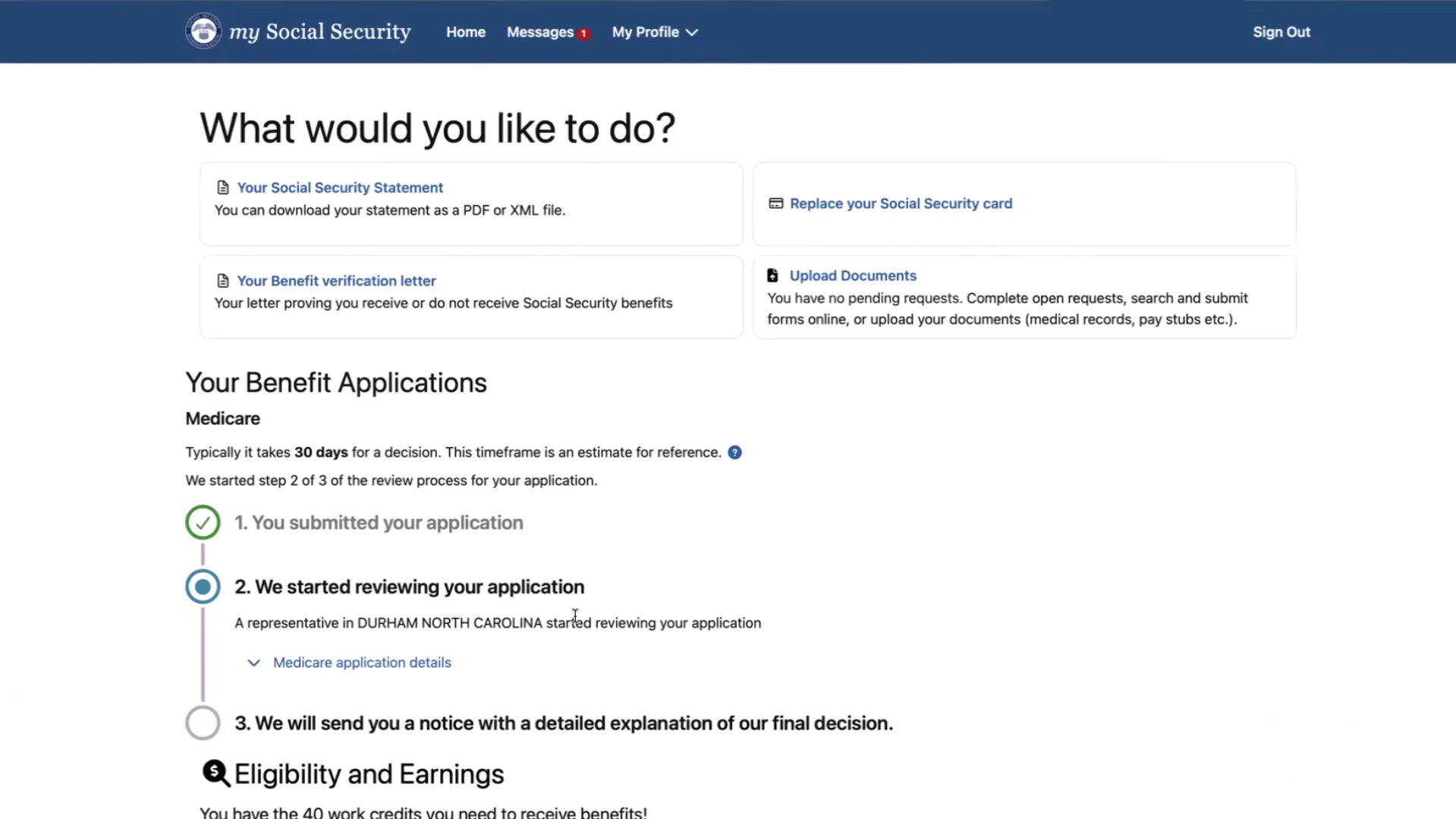
Step 23: Review the status details
Use the status details to understand what is underway.
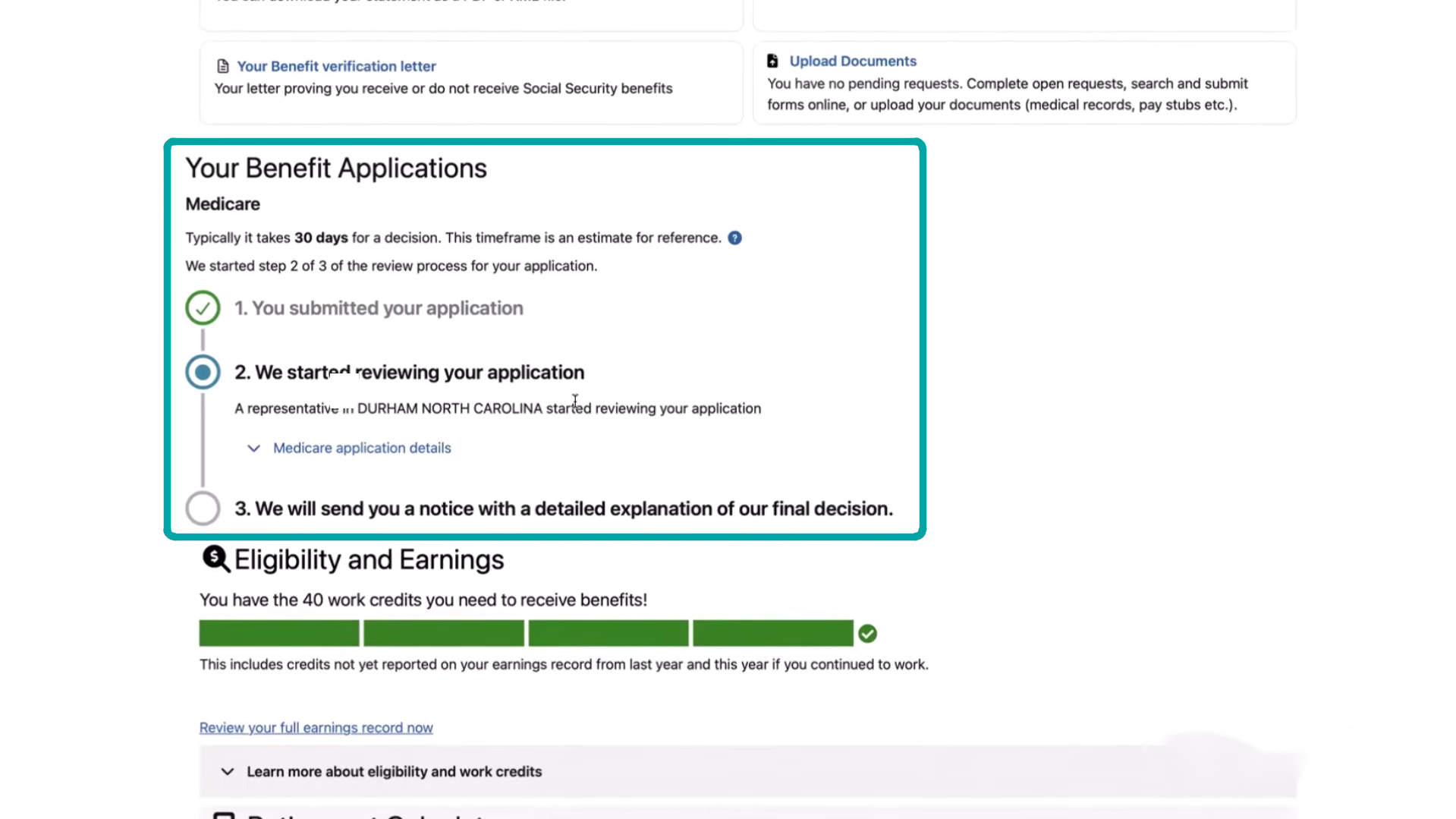
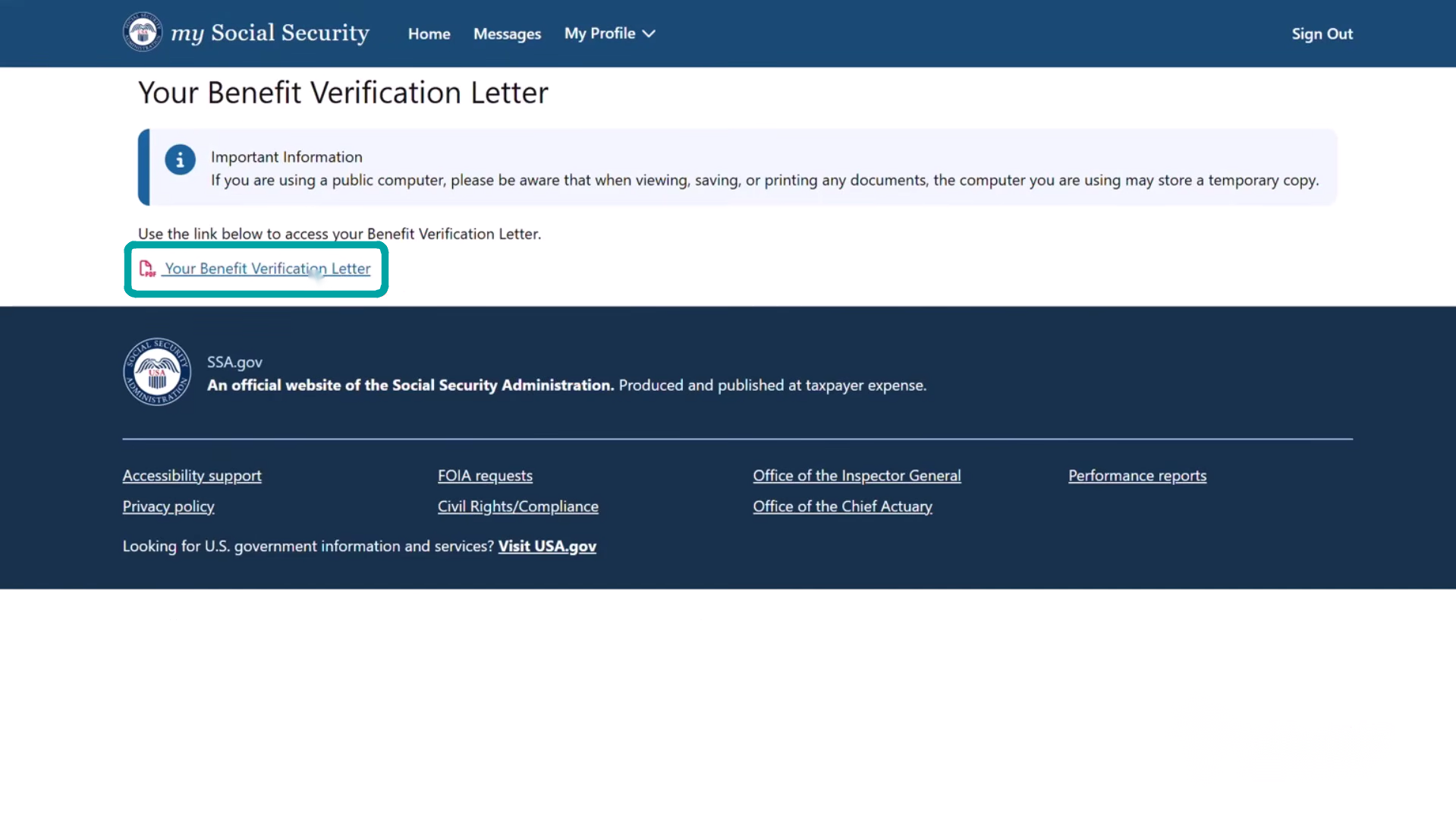
Step 24: Open your Benefit Verification Letter
Open Your Benefit Verification Letter when it becomes available.
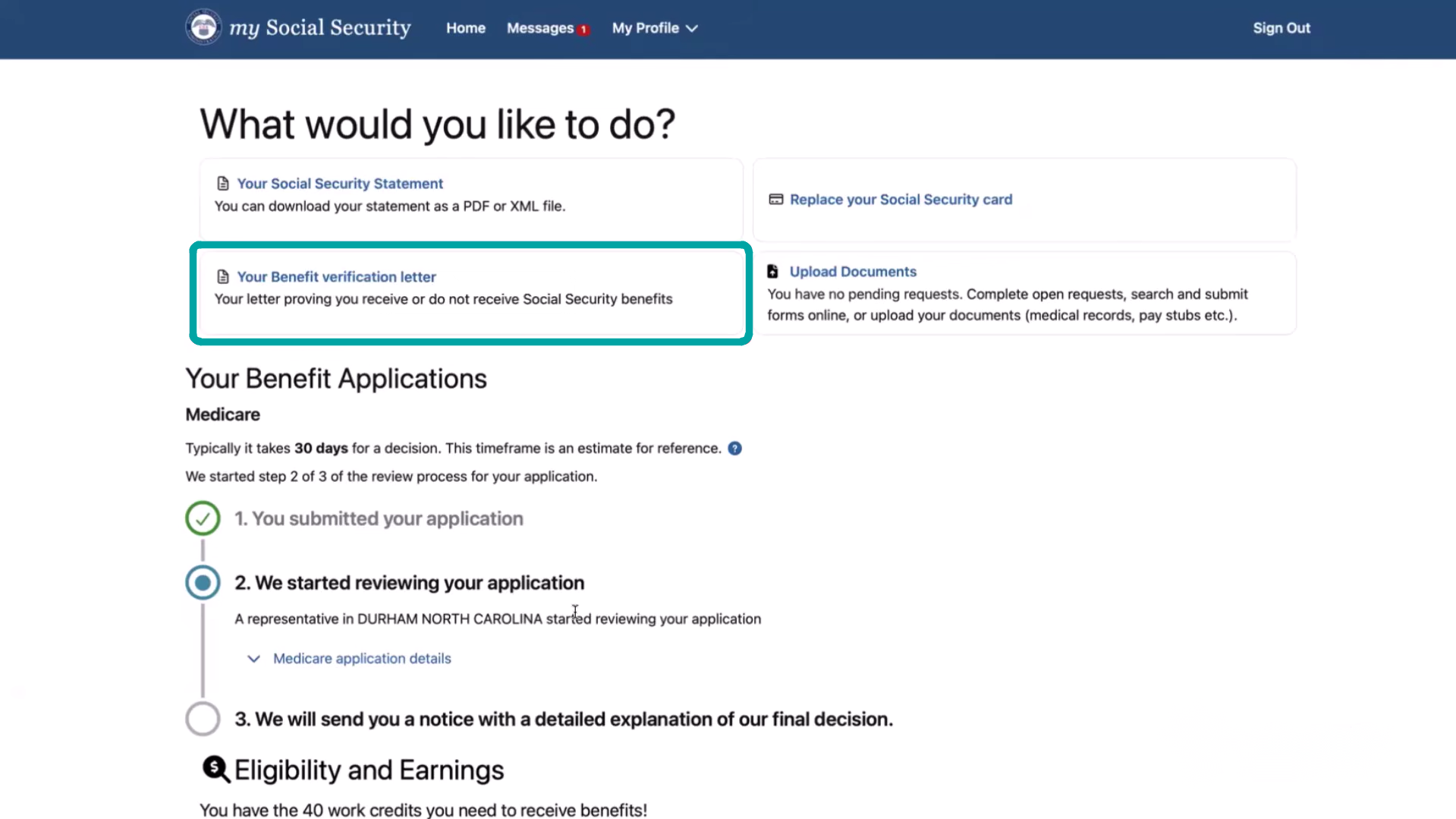
Step 25: Download the Benefit Verification Letter
Download the letter using a secure device and keep it private.
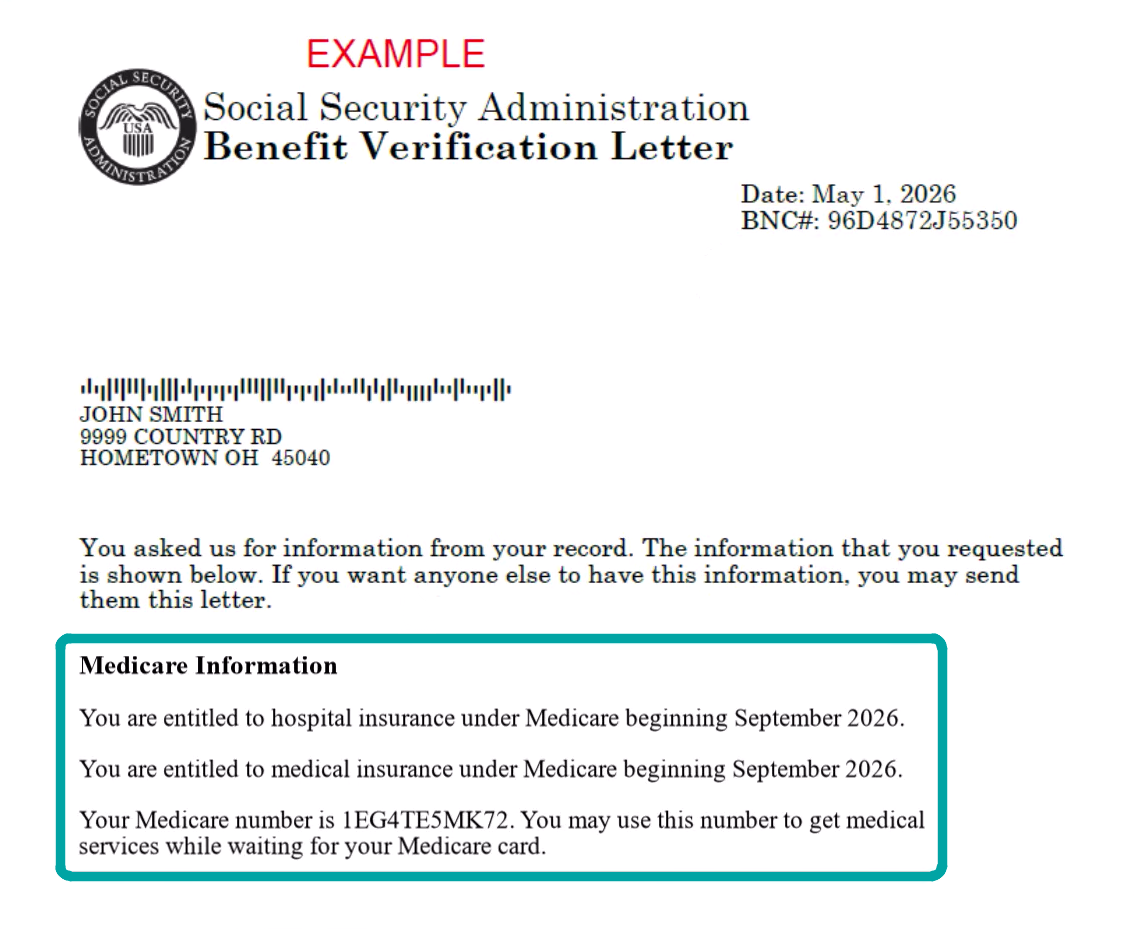
Step 26: Confirm your Medicare effective dates and number
Review the Medicare information section for your effective dates and Medicare number.
Need more help?
Please reach out to our team! Please try to complete your Medicare Parts A and B by yourself before scheduling your onboarding call. That will allow us to be as productive as possible and get you set up quickly to meet our deadlines!